Solutions

AI Lesson Planning

Start with an objective, topic, or standard. Eduaide builds the first draft, then the Lesson Planning Workspace helps you revise, differentiate, evaluate, add visuals, and export it for your classroom.
Lesson Planning workflow showing tool selection, prompt inputs, generated classroom materials, and editing controls in the workspace.
How It Works

From prompt to polished resource in one workspace

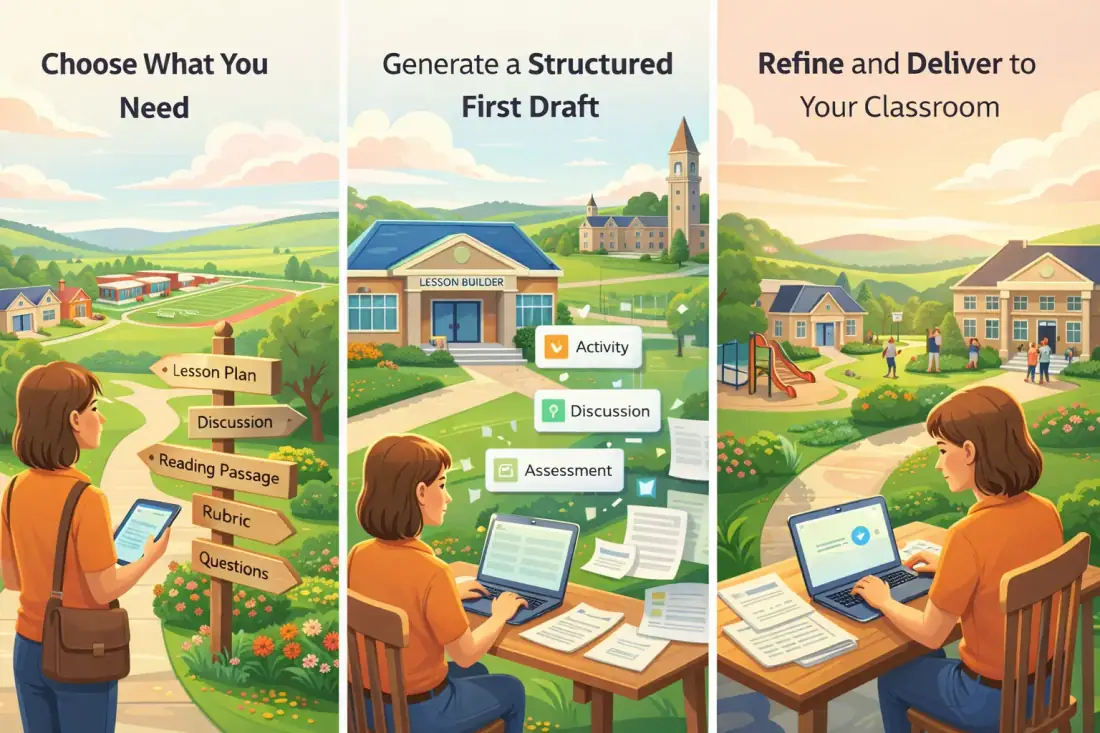
Teaching requires an enormous amount of materials, most of which are created from scratch by the teacher. Lesson Planning changes that by offering help with the task. You start by choosing what you need: a lesson plan, a discussion activity, a reading passage, a rubric, or a set of questions. You add your topic, grade level, and any relevant standards or context. Eduaide generates a structured first draft, grounded in how good instruction actually works, directly into an editable workspace.

From there, it's yours. Refine the language. Adjust the pacing with Erasmus Smart Document Chat. Adapt and differentiate for different learners. Evaluate reading level, vocabulary, sentence structure, and knowledge demands before students see it. Export for handouts, your reference, or to post on your LMS. The whole process from blank page to classroom-ready happens in one place.

What You Can Build

A full planning library, organized the way teachers actually work

Lesson Planning is organized into 8 categories that align with how teachers plan. Each category contains purpose-built tools, not generic prompts.

81 tools

Lesson & Unit Plans

11

Full lesson and unit templates built around established pedagogical frameworks. Includes Unit Plan (structured around explicit instruction, spaced practice, and cumulative mastery), 5 E's Lesson Plan (inquiry-based sequence from engagement through evaluation), Gagné's Nine Events of Instruction, Hunter's Mastery Learning, SPARK Lesson (real-world problem-solving and design thinking), Backward Design (UbD) Organizer, and Montessori Lesson Plan.

Explore

Planning Supports

10

Tools for the thinking that happens before instruction begins. Includes Learning Objective + Success Criteria (with alignment to Marzano's Taxonomy), Prior Knowledge + Scaffolding (identifying what students need to know and how to activate it), Assessment Measures, and Evidence Statements—a taxonomy of what mastery looks like at each cognitive level, from recall through synthesis and evaluation.

Explore

Direct Instruction

8

Scripts, demonstrations, and worked examples designed for explicit teaching. Includes Direct Instruction Script (structured around I Do / We Do / You Do with modeling, guided practice, and frequent checks for understanding), Demonstration (using the predict–observe–explain cycle), Worked Examples (step-by-step solutions with self-explanation prompts and fading scaffolds), Slides Outline, and Engagement Activities.

Explore

Assignments & Projects

11

Multi-step tasks and larger culminating work. Includes Research Project (with source analysis, presentation criteria, and a structured work timeline), Project-Based Learning Planner, Choice Board Assignments (8 differentiated activity options), Portfolio Assignment Outline, and Project-Based Assessment (PBA).

Explore

Discussion & Collaboration

14

Structured talk routines and cooperative learning frameworks designed to make student thinking visible. Includes Think-Pair-Share, Socratic Seminar (with tiered literal, interpretive, and evaluative questions), Jigsaw Activity (expert group structure with peer teaching), Concentric Circles Discussion, Gallery Walk, Round Robin, Debate, and Kagan Cooperative Learning Structures.

Explore

Questions

13

Question types designed to surface understanding at every cognitive level. Includes Multiple Choice Questions (with carefully constructed distractors that reflect real misconceptions), Deep Questions (moving students from concrete to abstract thinking), Taxonomy Scaffolding (questions scaffolded across all six levels of Bloom's Taxonomy), Multi-Part Questions (sequenced from foundational recall through transfer), Scenario-Based Questions, and Metacognitive Questions.

Explore

Rubrics & Progress Reporting

6

Assessment tools and progress documentation are built for both grading and learning. Includes Analytic Rubric (multi-criterion with detailed performance descriptors), Single-Point Rubric (proficiency-focused with open space for individualized feedback), Holistic Rubric, Developmental Rubric (tracking growth over time), Self-Assessment (with reflective prompts and student-facing criteria), and Report Card Comment Bank.

Explore

Communication & Classroom Culture

8

Outward-facing materials for families, students, and colleagues. Includes Draft Email, Class Newsletter, Student Update, Syllabus Starter, Accommodations List (8–12 specific, implementation-ready accommodations mapped to effort and impact), Social-Emotional Learning (SEL) Integrator, S.M.A.R.T. Goal Outline, Restorative Circle, and Icebreaker Activities.

Explore
Document Workspace

Generation is the beginning, not the end

Generation is the beginning, not the end. Everything Eduaide creates opens directly into the Workspace—a lightweight, document-based editor where the real instructional design happens.

From the Workspace you can review and revise the generated draft, restructure sections, adjust language, and prepare the final version before exporting. The editor supports multi-tab work so you can have multiple resources open side by side. DOCX import lets existing materials live alongside new ones. When you're ready, export for handouts, printing, or uploading to your LMS.

The left panel of the Workspace gives you access to five tools that operate directly on the open document: Erasmus Smart Document Chat, Adapt & Differentiate, Evaluate, Images, and History.

Eduaide Workspace showing a generated instructional resource open in the editor with document tools in the left sidebar and editing actions across the top.

Screenshot of Eduaide Workspace and Document Editor

Erasmus Smart Document Chat

Erasmus Smart Document Chat is a planning assistant anchored to the document you have open. It reads the current resource and can help you rewrite sections, generate examples, suggest extensions, or rethink pacing without leaving the Workspace.

When Erasmus suggests a change, teachers stay in control. Review the edit preview, apply it to the document, dismiss it, or ask again if the document has changed since the suggestion was prepared.

That makes Smart Document Chat different from a generic chatbot: the conversation is connected to the resource teachers are actively preparing for class.

Erasmus Smart Document Chat

Revise the checks for understanding so students explain their reasoning.

Suggested Edits

- What happens after the narrator changes her mind?

+ What evidence shows the narrator changed her mind? Explain how that evidence affects the scene.
ApplyDismiss

Adapt & Differentiate

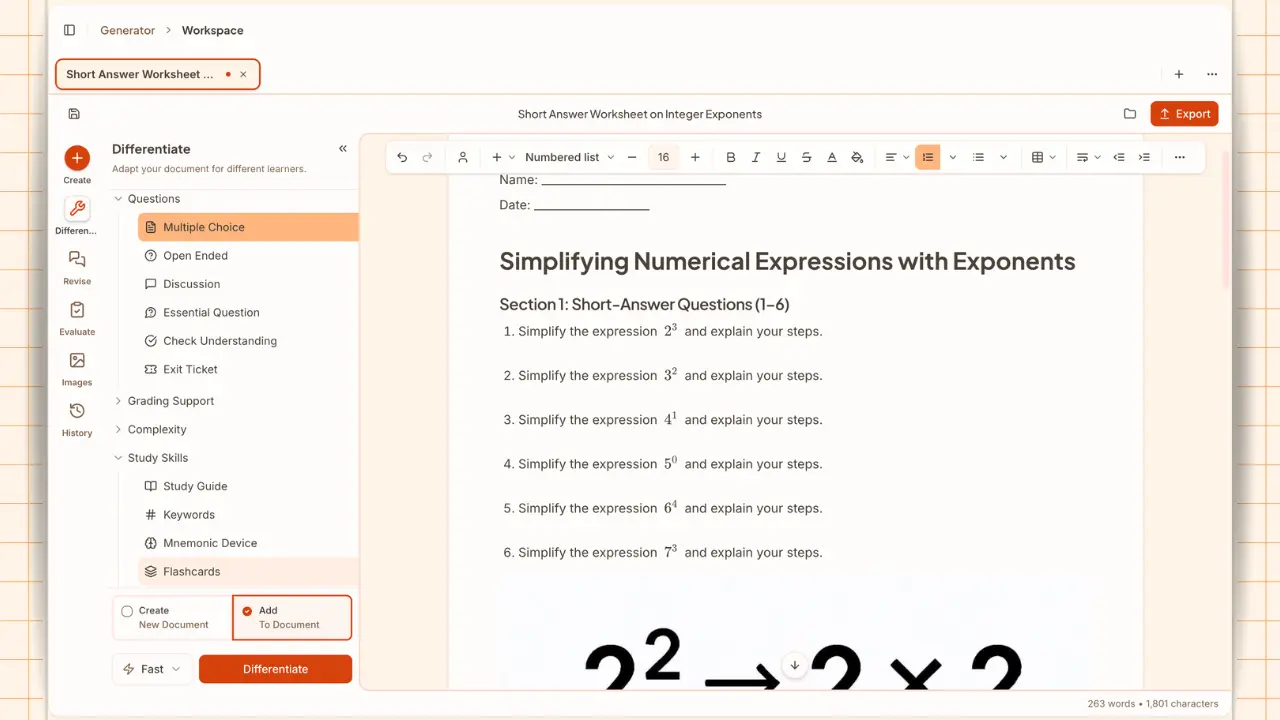
Use the open document as the starting point for new questions, supports, rubrics, study tools, translations, and alternate versions. Each option lets you choose whether the result becomes a new document or is added to the current one.

Options are organized into focused groups for questions, engagement, learner profiles, grading support, complexity, study skills, and translation. Teachers can insert the result into the current document or create a new version alongside the original.

Questions

Convert or add new question types to your document

Multiple Choice
Open Ended
Discussion
Essential Question
Check Understanding
Exit Ticket
Higher-Order Stems

Engagement & Extension

Add hooks, discussion routines, and extension work

Hook Activity Pack
Discussion Protocol Pack
Enrichment Pack

Learner Profiles

Adapt materials for access, challenge, and language support

Gifted / Enrichment
Absent Student Catch-Up
Reading Support
Pre-Teach Vocabulary Pack
WIDA Sentence Frames

Grading Support

Add answer keys and format-specific rubrics

Answer Key
Single-Point Rubric
Analytic Rubric
Developmental Rubric
Holistic Rubric

Complexity

Adjust reading demand for diverse learning needs

Summarize
Chunk Text
Increase Reading Level
Decrease Reading Level
Make Shorter
Make Longer
Sentence Stems

Study Skills

Add supplementary learning tools to help students succeed

Study Guide
Keywords
Mnemonic Device
Flashcards
Vocabulary Rhymes
Cornell Notes Template
Spaced-Repetition Schedule
Memory Palace Walkthrough

Translate

Translate your documents into 26+ languages with a single click.

Arabic
Chinese (Simplified)
Chinese (Traditional)
Croation
Danish
Dutch
English
Filipino
Finnish
French
German
Greek
Hindi
Indonesian
Italian
Japanese
Korean
Lithuanian
Polish
Portuguese
Romanian
Russian
Spanish
Swedish
Turkish
Vietnamese

Evaluate

Even when a resource is on the right topic, it may still need a closer look before it goes in front of students. Evaluate helps teachers check whether AI-generated instructional materials are appropriately matched to students before using them in class.

It can estimate the grade band a text is likely to fit, point out where support may be needed, and surface the words or sentence patterns that could slow students down.

It also looks at the knowledge students are expected to bring with them and whether the language is direct, abstract, figurative, or unfamiliar. The goal is not to replace a teacher's read of the material. It is to give teachers a clearer starting point for deciding whether to use a resource as written, adapt it, or teach it with extra support.

The evaluators behind this feature are developed in partnership with the Learning Commons, which designed the evaluation tooling with learning-science and rubric-development input from organizations including Student Achievement Partners, CAST, and Achievement Network (ANet).

Supported evaluators

Choose the check that matches the question you have.

Grade Level

Reading fit

Sentence Structure

Syntax complexity

Vocabulary

Word support

Subject Matter Knowledge

Concept load

Conventionality

Language clarity

Partnered with

Learn More About Evaluators

Images

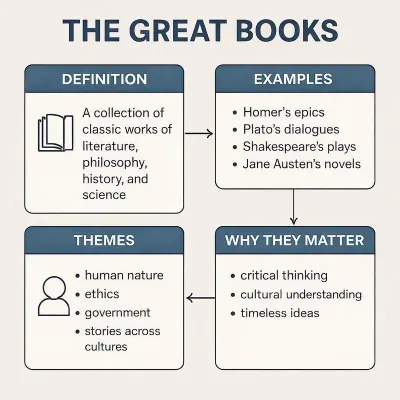
Generate visuals from a prompt or search public-domain images to insert directly into your materials. Useful for abstract concepts, vocabulary anchors, and procedures. You can insert visuals directly into the document or download them for later use.

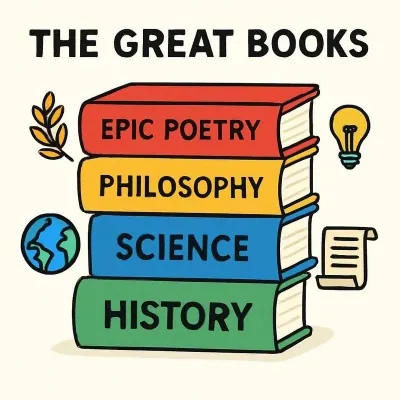
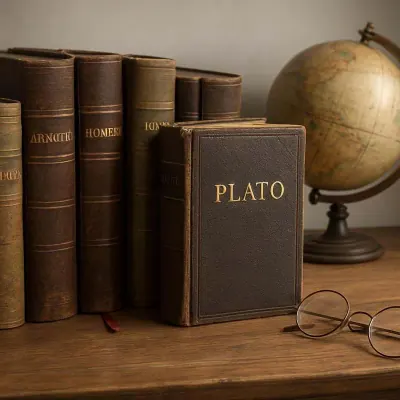
AI-generated images can be created in six different styles to support different instructional use cases.

The Great Books

"The Great Books" image in default style.

Default

"The Great Books" image in realistic style.

Realistic

"The Great Books" image in cartoon style.

Cartoon

"The Great Books" image in artistic style.

Artistic

"The Great Books" image in minimalist style.

Minimalist

"The Great Books" image in diagram style.

Diagram

Staying Organized

History and Classes keep your planning organized

History lets teachers reopen earlier resources, search past work, duplicate materials, and rename them. Create classes to organize resources by the classes, sections, and subjects you actually teach.

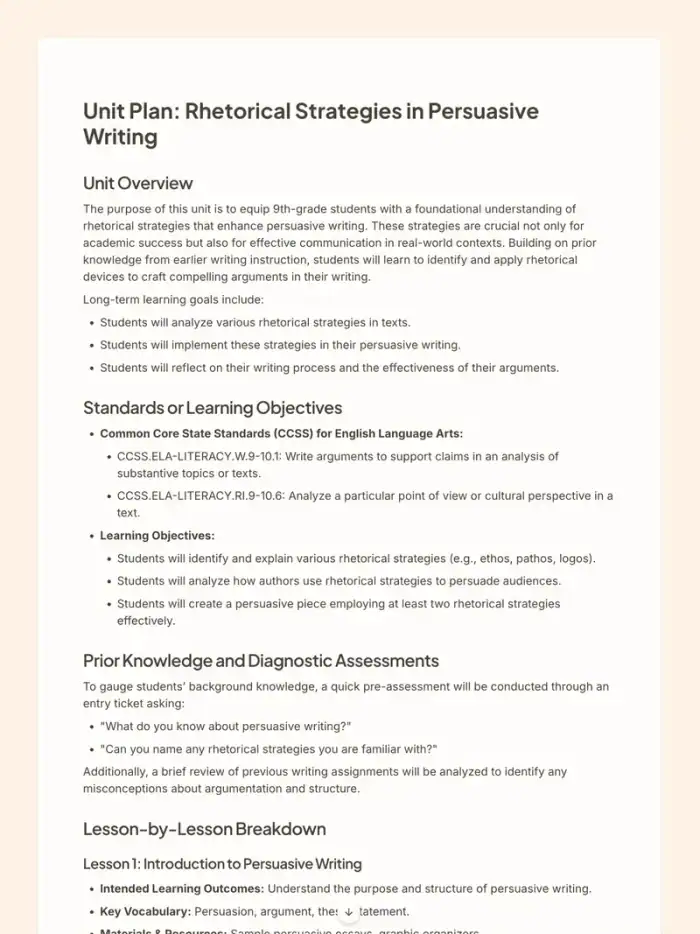
Examples of What Lesson Planning Can Create

Preview of a unit plan for rhetorical strategies in persuasive writing.

Where Good Ideas Become Great Lessons

Start with an objective, a topic, or a source. Leave with classroom-ready materials you can teach from.